Instructions for entering data into a Summary Assessment...
https://docs.google.com/a/hartlandschools.us/document/d/10HFleOj2uQeEYpSW_0LgeNOvqFHD1sA_TmBJkr8woiY/edit?usp=sharing
Tuesday, January 26, 2016

Friday, January 15, 2016
Illuminate 2015-16 Common Assessment ID #'s
2015-16 Common Assessment ID #'s
Click here to view a comprehensive list of Illuminate Common Assessment ID's:
Descriptions of Illuminate's Most Relevant Pre-Built Reports
Illuminate Reports Descriptions:
Click here to view a description of some of the most relevant pre-built Illuminate reports.
Tuesday, September 1, 2015
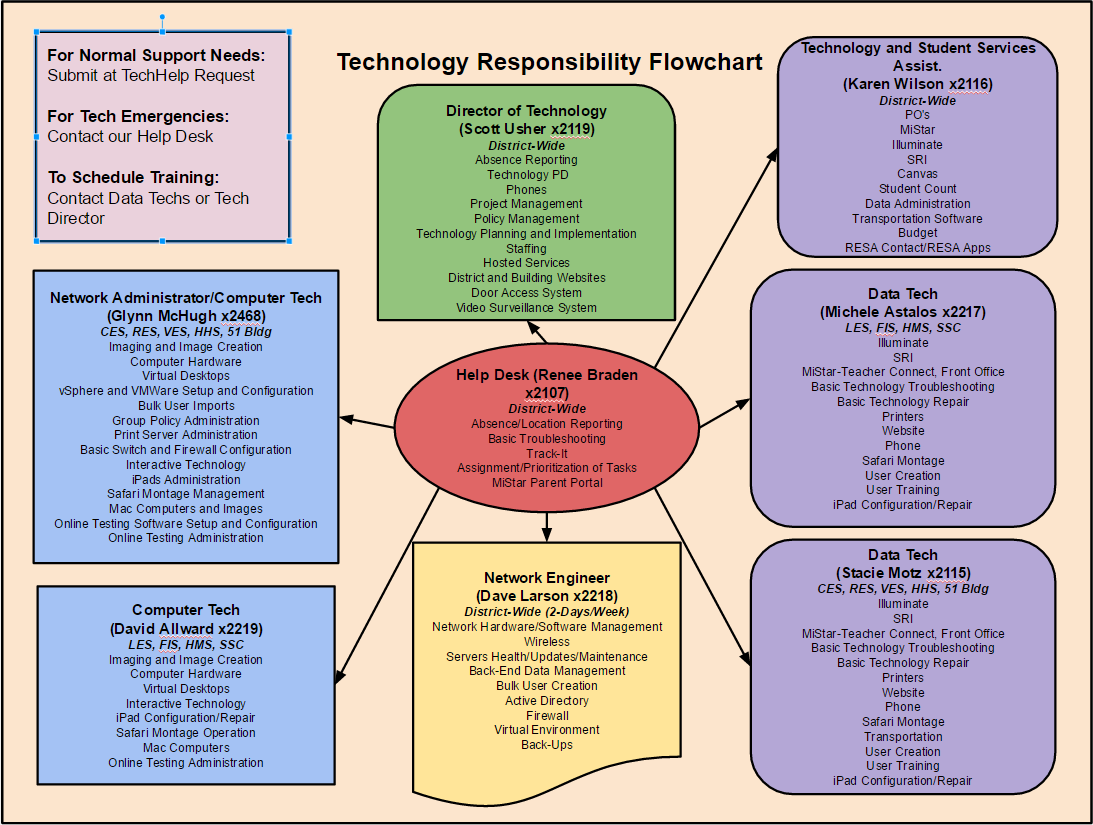
Technology Responsibility Flowchart
A number of folks have indicated an interest in having me resend the Technology Responsibility Flowchart. Below you will find that chart. To see the flowchart full size, please click on the link below it.
VDI Access from Outside the District
We have 50 basic “Staff” Virtual Desktops set up so teachers can have access to district network resources from outside the district. To login to a VDI Machine, follow the instructions below.
- Open the web browser of your choice from a computer connected to the Internet. The faster the Internet connection the better.
- Browse to https://mypc.hartlandschools.us/.
- From here you will have two choices, Install VMWare Horizon View Client or VMWare Horizon View HTML Access.
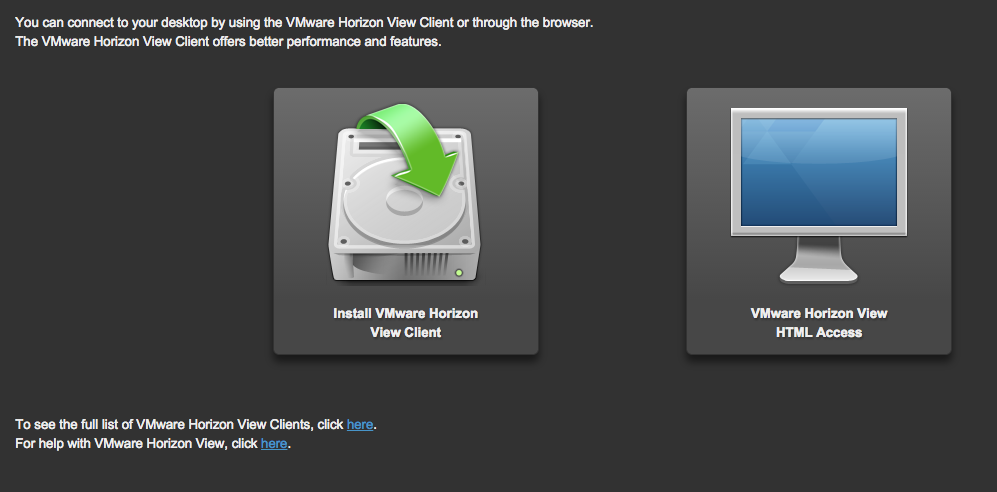
- Select “Install VMWare Horizon View Client” if you would like to download and install a client that will run on your Windows or Mac desktop. (This option often provides better performance of your virtual machine (VM). However, it is not necessary if you just want to run the VM through your browser. If you don't plan to do this all that often, then browser (HTML) access will probably suit you just fine.
- Select “VMWare Horizon View HTML Access” if you wish to run a “Staff” desktop through your web browser.
Installing and Running the Client
- Click on “Install VMWare Horizon View Client.
- Select the appropriate “go to downloads” link consistent with your computer where you are setting up the client. (Please only do this on a private device. Do not try to install on a public device where others will have access to the client after you leave such as a library).


- And yes, as you can see you can even install the horizon view client for iOS or Android.

- However, for your home computer, choose either the Mac link or one of the two Windows links. You will need to know if you have a 32-bit or 64-bit install of your windows operating system though.
- Click on the “Go to Downloads” link of your choice.
- Review your selection in the window that comes up and click the “Download” button.

- Once the file is downloaded, double click the icon and follow the onscreen instructions.
- Launch the client once the install completes.
- Click on the “New Server” icon to configure our virtual server

- When prompted to “Enter the name of the Connection Server” enter the following: mypc.hartlandschools.us
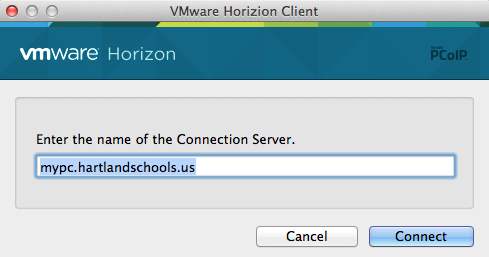
- Click the “Connect” button.
- If prompted type your UserID and Password (the same one you use to log into the computer at school every day.
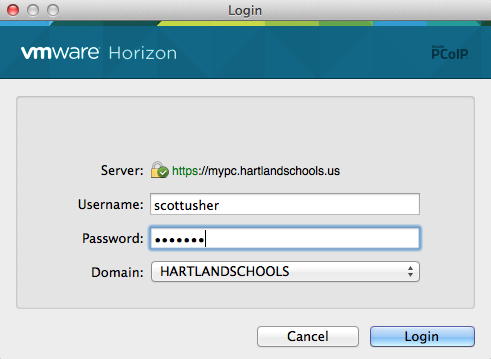
- Click “Login”
- You will then be launched into the “Staff” Windows 7 Desktop with all your drive mappings to the “H” drive and Shared drives set up for you.
This is a generic Staff Desktop with some of the basic applications we believe you may be wanting to use from offsite. Remember this is a VM running through your Internet connection at home. It has limitations but provides you access to many district resources.
Running Your VM Through Your Browser
- Click on the “VMWare Horizon View HTML Access icon.
- Enter your Username and Password. The same Username and Password you use to log on to your computer at school each day.

- Click “Log In”.
- You will have to click on the “Staff” VM (Virtual Machine) icon.
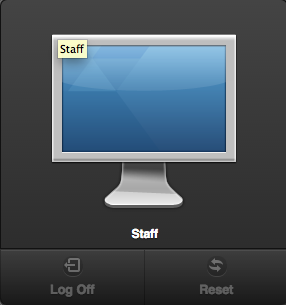
- This will launch your VM within your web browser and allow you to use the same applications and access the same drive locations as downloading and launching the client.
* When you are through using your VM from either the desktop or web client, please be sure to Log Out of your Windows 7 VM.
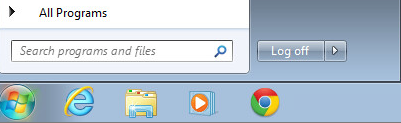
** If using the web client, also be sure to log out of mypc.hartlandschools.us by clicking on the “Log Out” button in the upper right corner.

From here you can close your browser window.
Wednesday, August 26, 2015
Passwords and Security
We all have busy lives and tend to overlook certain things. One of the things we should really be more careful about not overlooking in both our personal as well as professional lives is electronic security. I cannot tell you the number of times I have been asked to work on someone's computer, have asked them for their password and quickly learn it is still the default password the Tech Department gave them 3 years prior.
All too many times I have also heard the phrase "Oh I use that password for everything". I stop just short of following that up with the question, "Even your banking passwords?" because I don't even want to know the answer.
Best practices and your Hartland Technology Department recommendation indicates you should have to access your computer by using a protected (login/password) and you should have separate passwords for every online account you make. Strong passwords should be a mix of alpha, numeric, and capital letters such as 53np8R7T8 to make it as hard as possible for anyone to break.

Still skeptical?
Look at it this way, if another person happens to gain access to your password that you use to log into your computer and all your passwords are the same, that student will have a much easier time gaining access to your school email, MiStar, Illuminate, banking, credit card, retirement, etc. accounts. Sure the UserID's may not be the same, but in most cases they are comprised of your name and much easier to guess than your passwords.
All that being said, don't make things so complex that you forget your passwords. To help you, you can use a password keeper such as the free LastPass password keeper (https://lastpass.com/) or another one of your choosing. LastPass allows you to maintain all your passwords in one database while ONLY needing to remember the one password that allows you to gain access to your password database.

It's the beginning of a new school year and therefore an excellent time to consider shoring up your personal and professional electronic security and changing those tired old electronic passwords.
All too many times I have also heard the phrase "Oh I use that password for everything". I stop just short of following that up with the question, "Even your banking passwords?" because I don't even want to know the answer.
Best practices and your Hartland Technology Department recommendation indicates you should have to access your computer by using a protected (login/password) and you should have separate passwords for every online account you make. Strong passwords should be a mix of alpha, numeric, and capital letters such as 53np8R7T8 to make it as hard as possible for anyone to break.

Still skeptical?
Look at it this way, if another person happens to gain access to your password that you use to log into your computer and all your passwords are the same, that student will have a much easier time gaining access to your school email, MiStar, Illuminate, banking, credit card, retirement, etc. accounts. Sure the UserID's may not be the same, but in most cases they are comprised of your name and much easier to guess than your passwords.
All that being said, don't make things so complex that you forget your passwords. To help you, you can use a password keeper such as the free LastPass password keeper (https://lastpass.com/) or another one of your choosing. LastPass allows you to maintain all your passwords in one database while ONLY needing to remember the one password that allows you to gain access to your password database.
If you are interested, check out this YouTube video to help you get started.
Subscribe to:
Posts (Atom)