Activate Instruction is a free online tool, accessible through Illuminate. This tool will help you to create and locate K-12 resources that can assist students in learning. Create your own playlist or follow other teachers' playlists...sign up and begin searching.
Wednesday, February 3, 2016

Monday, February 1, 2016
Wireless Guest Network Not Prompting for Acceptable Use Policy Page
Any end-user (Staff, Student, Parent, Visitor) can bring their personal electronic device to Hartland Schools and connect to our "Guest" Network.
If you do not receive this prompt once you select the "Hartland-Guest" wireless network, follow the instructions below:
Open your browser and in the address field type the following: http://1.1.1.1
Then press enter.


When end-users connect to the "Hartland-Guest" network they are supposed to be prompted to click a button to "Accept" the district's Acceptable Use Policy.


Once this screen appears, the end-user can usually just click on the "Continue" button and the Acceptable Use Policy will appear prompting the user to "Accept" it.
If you have difficulty:
We have heard of some end-users not being presented with this prompt once they have attached to the "Hartland-Guest" network. (It does not pop up automatically.)Open your browser and in the address field type the following: http://1.1.1.1
Then press enter.
You will be prompted with the following window:

This usually scares people but rest assured it is okay. Click "Advanced."

Again you are greeted with what looks like it may be a scary window. Click "Proceed to 1.1.1.1 (unsafe). It is perfectly safe to do so.

You are finally at the Acceptable Use Policy and can now read and "Accept" it so you can begin browsing.
Bypassing Internet Content Filter (Lightspeed)
As we all know, school districts are required to responsibly block inappropriate websites. Sometimes, however, sites get blocked that should not be. Adult users at HCS have the ability to override the filter for certain categories of sites, such as "Social Media".
More and more sites have been switched to include encryption making the website more secure. This is generally denoted by the "s" at the end of the http in the address field of your web browser and looks like this:

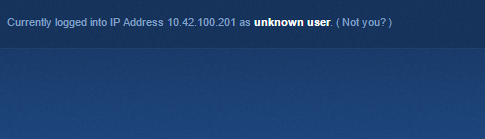

Sites that use the encryption (https://) confuse our filter a bit and cause it to have a bit of difficulty prompting with the "(Not you?)" link. In this case, you may encounter a page that looks like this and from here you may not know what to do:

When you encounter a problem getting to a site that does not give you the blue blocked page yet you still need to bypass the filter, you can always browse to the following address:
Here you will encounter the Lightspeed login page:
Use your Active Directory (computer) UserID and Password to login to the Lightspeed Filter. Click the login button and you will be logged into the filter for a period of 15 minutes enabling you to go to the site.
Tuesday, January 26, 2016
Summary Assessments in Illuminate
Instructions for entering data into a Summary Assessment...
https://docs.google.com/a/hartlandschools.us/document/d/10HFleOj2uQeEYpSW_0LgeNOvqFHD1sA_TmBJkr8woiY/edit?usp=sharing
https://docs.google.com/a/hartlandschools.us/document/d/10HFleOj2uQeEYpSW_0LgeNOvqFHD1sA_TmBJkr8woiY/edit?usp=sharing
Friday, January 15, 2016
Illuminate 2015-16 Common Assessment ID #'s
2015-16 Common Assessment ID #'s
Click here to view a comprehensive list of Illuminate Common Assessment ID's:
Descriptions of Illuminate's Most Relevant Pre-Built Reports
Illuminate Reports Descriptions:
Click here to view a description of some of the most relevant pre-built Illuminate reports.
Subscribe to:
Posts (Atom)